Free online booking in Telegram
Clients book themselves, you just confirm
Your own bot with your name, plus a calendar and notifications right in Telegram. It's free, setup takes 2 minutes, and your clients have nothing to install.
Every feature is free, no limits
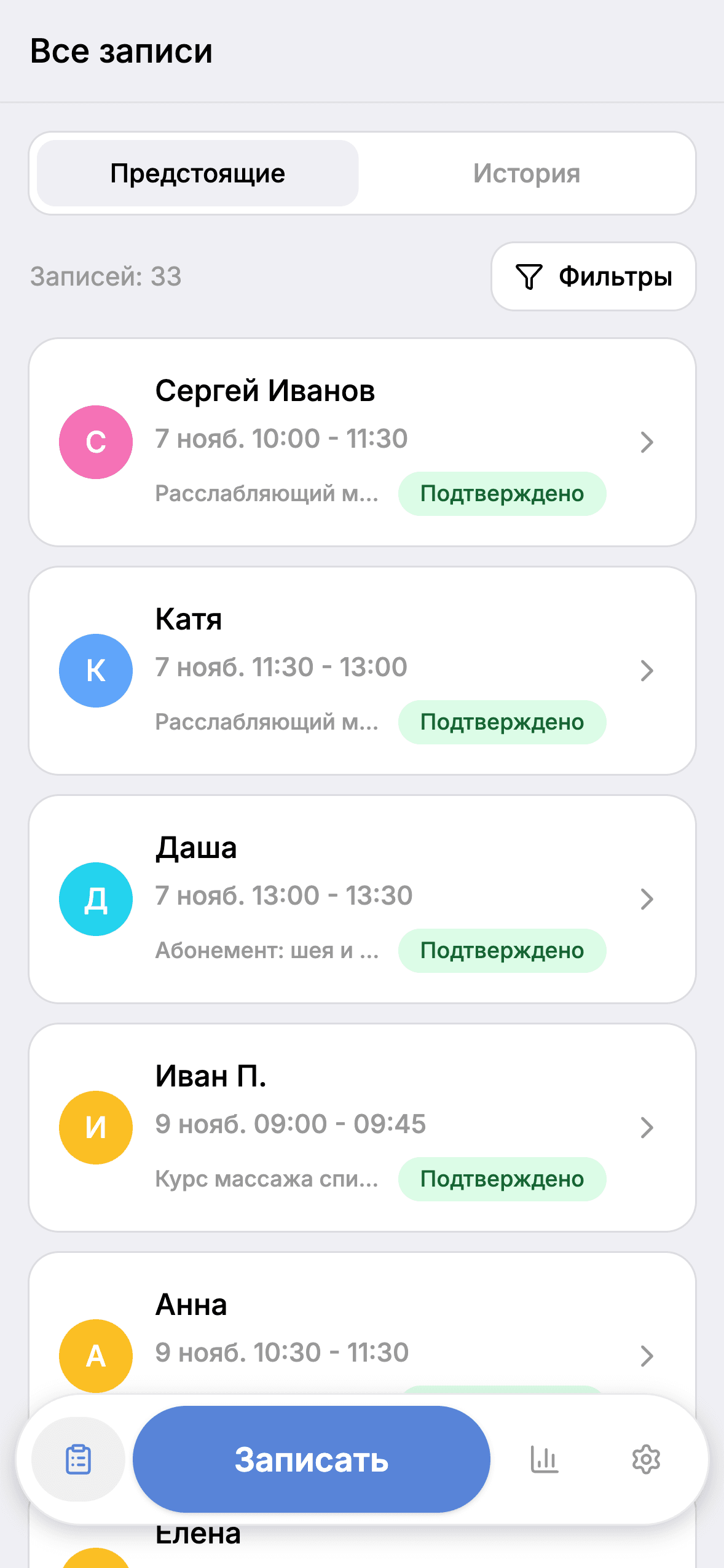
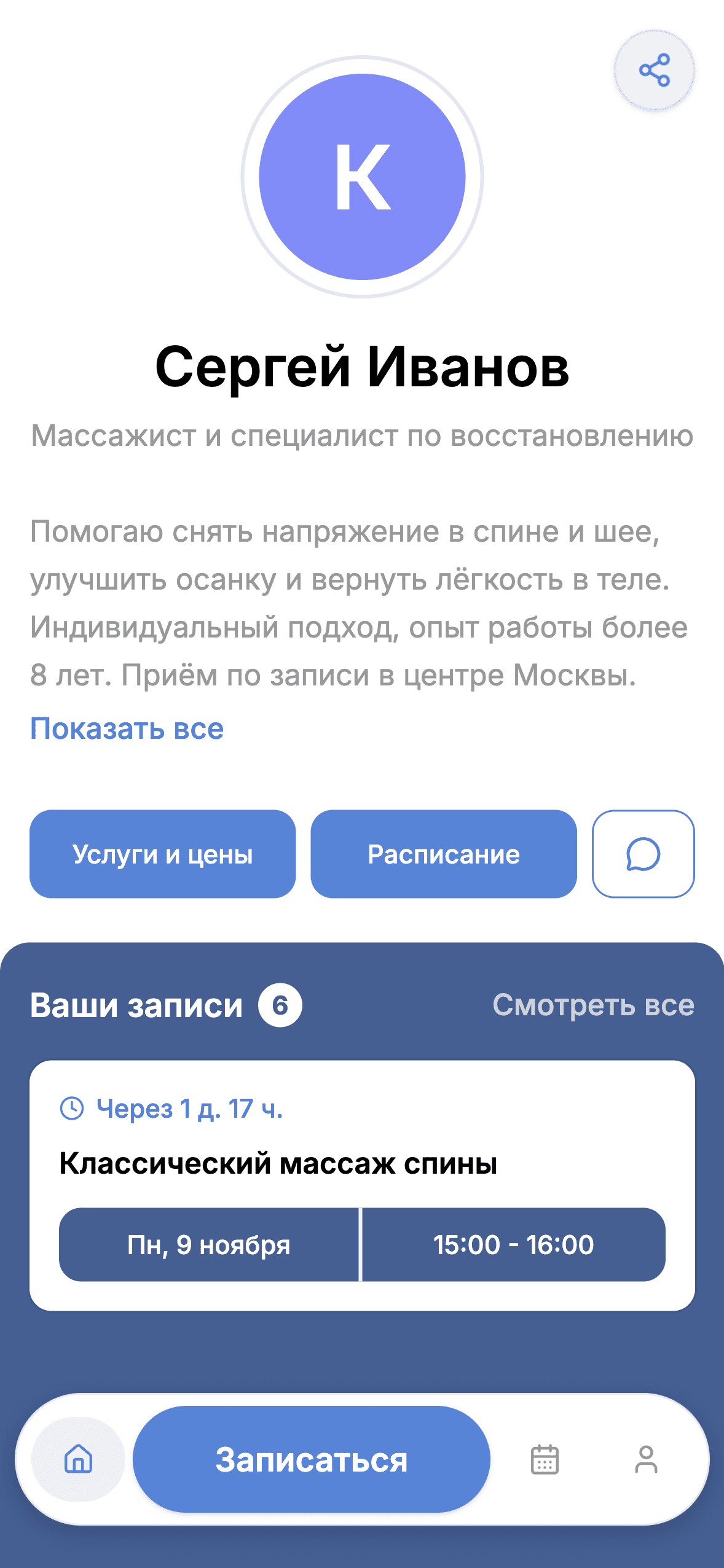
Clients on Telegram book through your bot on their own, and anyone without it can be added manually
Bookings shouldn't live in your DMs
Bookings get lost in chats
Times, services and agreements are scattered across dozens of conversations.
Questions at any hour
"Any slots tomorrow?" pulls you away from work and arrives even at night.
Clients forget
Without a reminder a visit is easily missed, and your time is already gone.
Late cancellations
A client cancels an hour before, and the slot stays empty.
Everything for booking, right in Telegram
Clients use the messenger they already know, and you run your schedule from your phone. Every feature is free.
One-tap confirmation
New requests arrive in Telegram: accept or decline right away.
Reminders
Clients get reminders, and you get notified about new bookings.
Recurring bookings
Got a regular client? Set up their schedule once.
Clients book themselves
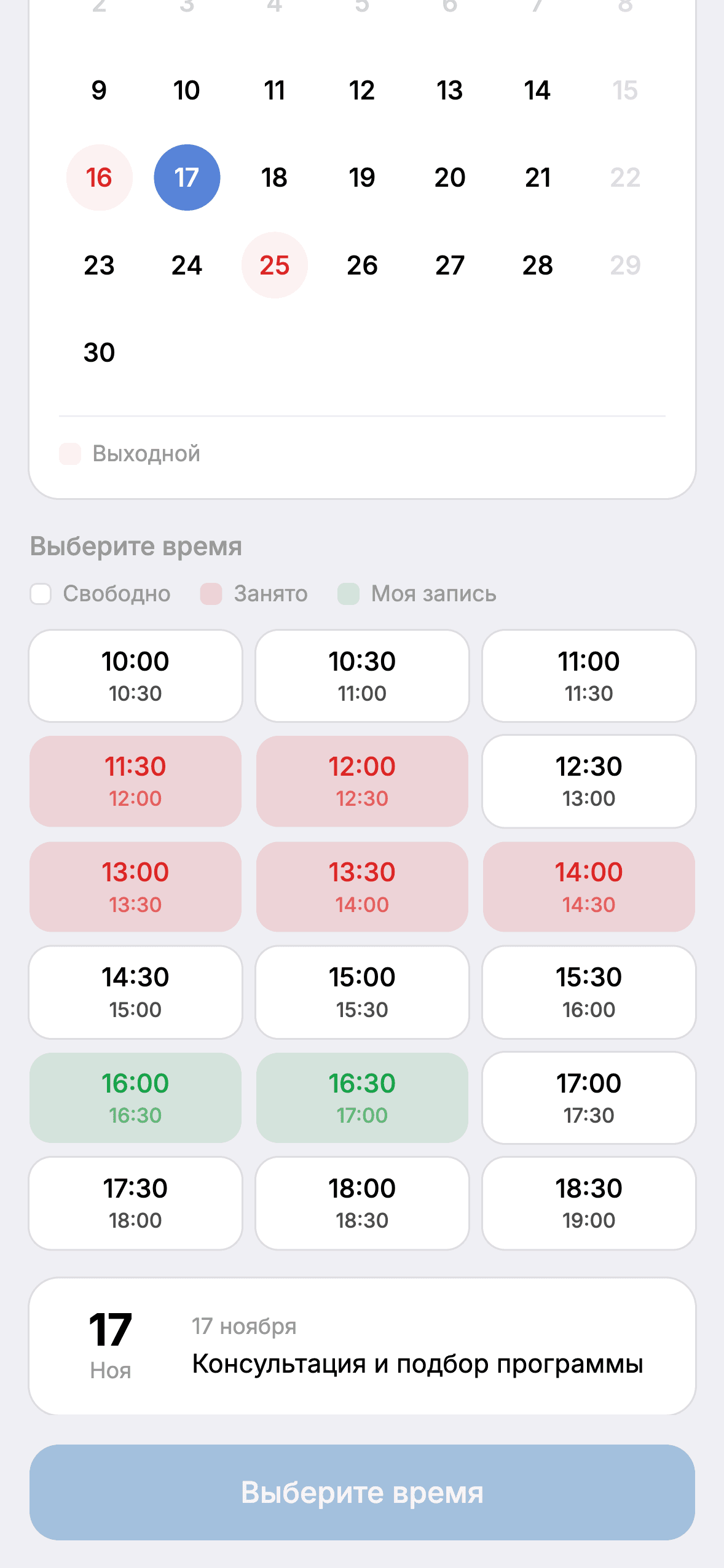
They pick a date, duration and time in your bot, and taken slots are never shown.
Client base
Visit history and contacts in one place. You can add clients without Telegram too.
Cancellation policy
Set a deadline: a late cancellation counts as a completed session.
Analytics
Revenue and workload, so you can see how things are going.
Book clients without Telegram too
Clients on Telegram book through your bot. Add everyone else manually and put them on the schedule yourself. Every booking lives in one calendar.
Clients without Telegram
Add a client by name and put them on the schedule yourself: the booking appears in your calendar and is confirmed right away.
- Add a client without Telegram in a couple of taps
- One-off and recurring bookings
- The same client base and visit history
Clients on Telegram
They open your bot, pick a date and time, and send a request. You confirm it with one tap.
- Book any time, no back-and-forth chats
- Reminders reach the client
- Busy times are never shown to them
Clients don't have to install anything or sign up. You decide how it suits them to book.
For anyone who works by appointment
- Trainers
- Tutors and teachers
- Nail artists
- Hairdressers and barbers
- Massage therapists
- Psychologists and consultants
Up and running in three steps
- 1
Create your bot
Open our bot and follow the prompts. If you get stuck, an operator can help at any step.
- 2
Set up your services
Add services, prices and your schedule in the mini-app.
- 3
Share the link
Send your bot link to clients so they can start booking themselves.
Why it's easier than booking by hand
DMs and a notebook
Scheduler
DMs and a notebook: You arrange every booking in chat
Scheduler: Clients pick a free slot themselves
DMs and a notebook: Your schedule is in your head or a notebook
Scheduler: Your calendar is always at hand
DMs and a notebook: You remind everyone yourself
Scheduler: Clients get reminders
DMs and a notebook: You sort out cancellations by hand
Scheduler: Set a cancellation policy once
DMs and a notebook: Client history gets lost in chats
Scheduler: A client base with visit history
Everything is free
Every feature is open to every specialist from day one. There is nothing to pay.
What's included
- Clients book themselves through your bot
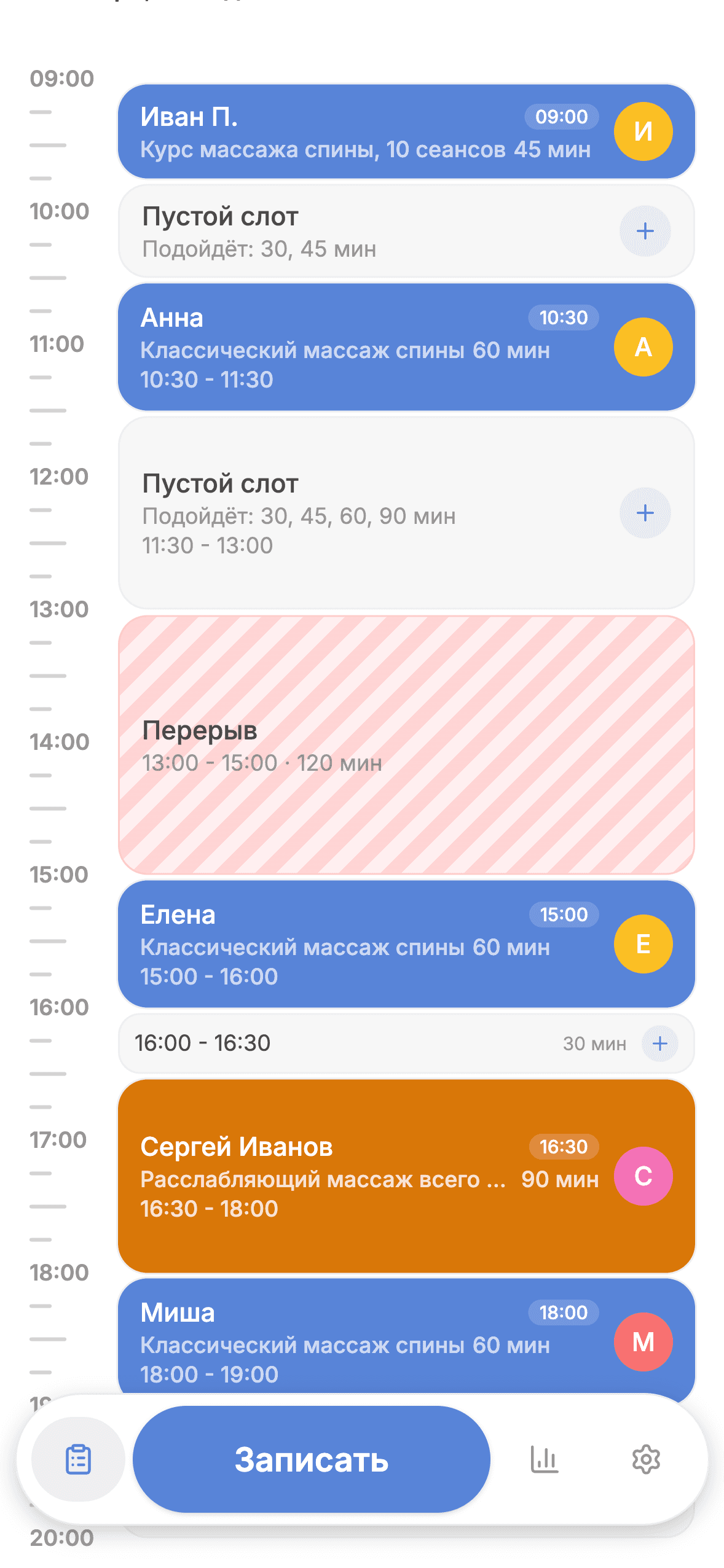
- Calendar and schedule
- Reminders for clients and notifications for you
- Recurring bookings
- Session packages (prepaid passes)
- A client base with visit history
- Bulk scheduling tools
- Revenue and workload analytics
There are no limits on the number of clients or bookings.
Recommend us to a colleague
The service is free for every specialist. Send a colleague the link from our bot: setting up their own bot takes a couple of minutes.
Frequently asked questions
Getting started
How do I create a bot?
It takes 2 minutes, and an operator can help at any step. Open @BotFather in Telegram and send /newbot. Pick a name for the bot (e.g. "Ivan — massage") and a username ending in bot (e.g. ivan_massage_bot). Copy the token BotFather sends you, come back to our bot, tap "🤖 Create my bot" and paste the token. If you get stuck, support will help you create the bot: open our bot and tap "💬 Talk to operator".
How do I use the service?
After registration you get your own bot: share its link with clients. Set up your services, prices and schedule in the mini-app. Clients open the bot and book themselves, choosing a date, duration and time. You get a notification and confirm or decline with a single button. Inside you'll find a calendar, client base, visit history and reminders.
How do I replace my bot token?
If your token stopped working or you recreated the bot in BotFather, send /replacetoken in our bot and follow the steps.
Cost
How much does it cost?
Nothing. The service is free, and every feature is available to every specialist from day one.
Are there any limits?
No. Client self-booking, recurring bookings, session packages (prepaid passes), bulk scheduling tools, and revenue and workload analytics are available to everyone, with no limits on the number of clients or bookings.
How do I invite a colleague?
Open our bot and tap "🤝 Invite a colleague": your personal link is there. Send it to a fellow specialist.
Services and schedule
How do I add or edit a service?
Go to Settings > Services & Prices. Add a service or open an existing one, then set its name, price, duration, and photo.
How do I set working hours and breaks?
Go to Settings > Schedule. Add one or more working intervals for a day. Any gap between intervals appears as a break in the admin calendar.
How do I block days off?
Go to Settings > Days Off, select a date, add an optional reason, and save it. Clients will not be able to book blocked days.
Clients
Do my clients need Telegram?
No. You can add a client without Telegram manually: enter their name in the clients section and put them on the schedule yourself, and the booking is confirmed right away. Clients on Telegram book on their own through your bot. Both kinds show up in the same calendar and client base. Reminders and notifications only reach clients who use Telegram.
How do I add a client via Telegram?
Share your Telegram bot link with the client. Once they tap Start in the bot and open the booking app, they will automatically appear in your client list. You can find the link to your bot in your Telegram profile.
How do I add a client who does not use Telegram?
Go to Settings > Clients, tap +, and add a guest client. You can then book sessions for them yourself from the admin booking flow.
How do I find a client?
Use the search bar in Settings > Clients. Search works by client name, display name, and phone.
How do I message a client?
Open a booking or a new request and tap Message. Messaging is available only for clients with a Telegram account linked to the booking.
Bookings and cancellations
How do I handle new booking requests?
On the admin home screen, open New Requests. You can accept, reject, or message the client if they can be reached in Telegram.
Where can I see all bookings?
Go to All Bookings from the admin dashboard. Use filters for status, date, client, service, and sorting.
How do I reschedule or cancel a booking?
Open the booking from the calendar or All Bookings. Choose Reschedule to pick a new date and time, or Cancel to cancel with an optional reason.
What happens if a client cancels too late?
If the cancellation policy is enabled, the booking is counted as completed rather than cancelled. The client sees a warning before confirming but can still proceed. You can set the cutoff window in Settings > Schedule > Cancellation policy.
How do I set up the cancellation policy?
Go to Settings > Schedule and scroll down to the Cancellation policy section. Enable the toggle and set how many hours in advance clients must notify you of a cancellation or reschedule. If a client cancels after that deadline, the session is automatically marked as completed instead of cancelled.
Still have questions?
Open our bot and tap "💬 Talk to operator". We'll reply right there.
Contact supportYour booking could be live today
Free, with every feature. Scan the QR code with your phone camera or press the button to open the bot in Telegram.
Create my bot for free